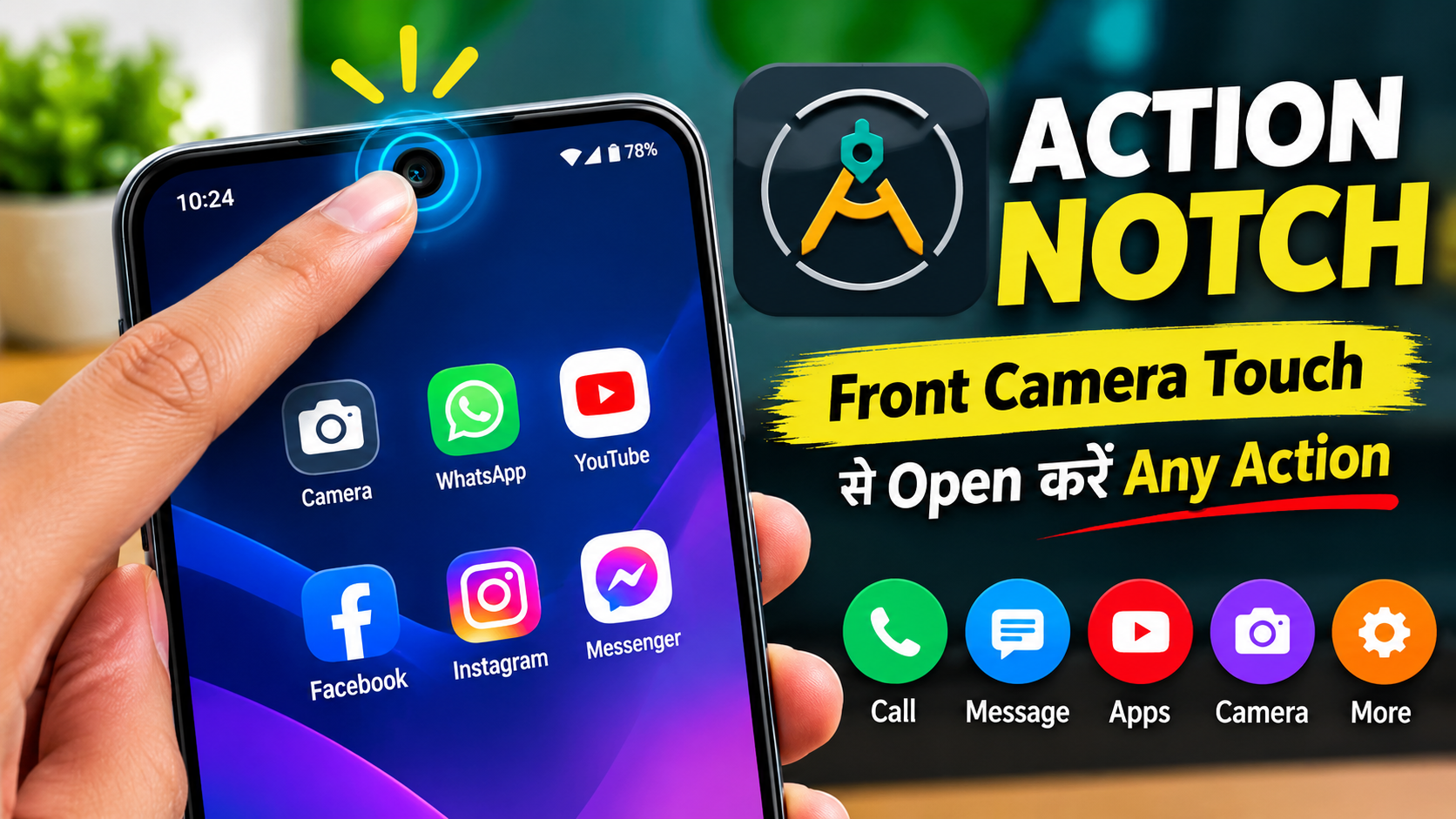
We use our smartphones for almost everything these days, from opening social media and taking photos to checking messages and launching important apps. Usually, accessing these features means finding the right app or pressing different buttons.
Action Notch – Touch The Front Camera To Open Any Action offers a different approach. The Android app lets you use the area around your phone’s front camera as a shortcut point, allowing you to trigger selected actions with a simple touch.
Instead of searching through your apps every time, you can assign frequently used functions to quick touch gestures.
Also read: Designer Tools Pro: A Handy Android App for UI Design and Testing
What Is Action Notch?
Action Notch is an Android customization and shortcut app that turns the front-camera area of a compatible phone into an interactive shortcut.
After configuring the app, you can assign different actions to gestures such as a single tap or double tap. Depending on the available options and device compatibility, these shortcuts can be used to launch applications or perform selected phone functions.
The idea is simple: touch the designated area and quickly access the feature you need.
Why Use Action Notch?
If you frequently open the same apps or perform the same tasks throughout the day, shortcuts can make your phone more convenient to use.
Action Notch can be useful because it may help you:
- Open frequently used apps faster
- Reduce the need to search through the app drawer
- Access shortcuts with one hand
- Customize the way you interact with your phone
- Create a more unique smartphone experience
For users who enjoy experimenting with Android customization, the front-camera shortcut concept can also make the device feel different from the standard interface.
Key Features of Action Notch
1. Quick Touch Shortcuts
The main feature is the ability to assign an action to a touch on the designated front-camera area.
For example, you could configure a shortcut to open an app you use frequently instead of locating it manually.
2. Multiple Gesture Options
Depending on the app version and your device, different touch patterns can be configured for different actions.
For example:
- Single touch → Open Camera
- Double touch → Launch a messaging app
- Another gesture → Open a selected application
This gives you more flexibility than having just one shortcut.
3. App Launching
Action Notch can make frequently used applications easier to access.
You may be able to assign shortcuts to apps such as:
- YouTube
- Camera
- Other installed applications
This can be particularly helpful if you regularly switch between a small number of apps.
4. Customizable Controls
The app focuses on personalization, allowing users to configure available shortcut settings according to their preferences.
Depending on the version, customization options may include touch behavior, visual settings, icons, or sensitivity.
5. One-Handed Convenience
Reaching different buttons or navigating through several menus isn’t always convenient, especially when you’re using your phone with one hand.
A shortcut placed near the front-camera area can provide another way to access frequently used functions.
How to Set Up Action Notch
Getting started is relatively simple.
Step 1: Install the App
Download Action Notch from a trusted source such as the Google Play Store.
Step 2: Open the Application
Launch the app and go through the initial setup instructions.
Step 3: Choose an Action
Select the app or function you want to launch using the shortcut.
Step 4: Configure the Gesture
Choose the available touch or gesture option and assign your selected action to it.
Step 5: Test the Shortcut
Save your settings and touch the designated area to check whether the action works correctly.
If the shortcut doesn’t respond properly, review the app’s permissions and sensitivity settings.
Does Action Notch Turn On the Camera?
The app’s concept is based on interacting with the area around the front camera. Using such a shortcut does not necessarily mean that the camera itself is being used to capture images.
However, the exact behavior depends on how the particular version of the app implements its detection method and the permissions required by your device. It’s always a good idea to review the permissions before enabling the feature.
Who Should Try Action Notch?
Action Notch may appeal to:
- Android users who enjoy customization
- People who frequently use app shortcuts
- Users who prefer one-handed operation
- Smartphone enthusiasts looking for unusual features
- Anyone who wants quicker access to selected apps
It can also be interesting for users who simply want to try a different way of interacting with their Android device.
Advantages and Limitations
Advantages
- Quick access to selected shortcuts
- Unique front-camera-area interaction
- Customizable gesture options
- Can make one-handed use more convenient
- Adds a different touch to Android customization
Limitations
- Compatibility may vary between Android phones
- Touch detection may not work equally well on every device
- Some features may require additional permissions
- It may take a little time to become familiar with the new shortcut system
Your experience can also depend on your phone’s display design, software version, and the specific implementation of the app.
Things to Check Before Using It
Before installing or enabling any third-party customization app, consider a few basic safety points.
- Download the app from a trusted source.
- Check the permissions it requests.
- Read recent user reviews.
- Make sure it is compatible with your Android version.
- Disable permissions that aren’t necessary for the features you want.
- Test the shortcut before relying on it for important tasks.
These simple steps can help you use customization apps more safely.
Why Is Action Notch Different?
Most Android shortcut tools rely on gestures, navigation buttons, floating icons, or hardware keys. Action Notch takes a more unusual approach by using the front-camera area as the interaction point.
That makes the concept interesting for people who enjoy trying new Android features. Rather than adding another button to the screen, it attempts to turn an existing part of the phone’s display area into a convenient shortcut.
Official Play Store Link
Final Thoughts
Action Notch offers an interesting way to customize how you interact with your Android phone. By assigning actions to touch gestures around the front-camera area, you can access selected apps and functions without repeatedly searching through menus.
Its biggest attraction is its unusual approach to shortcuts. While compatibility and available features can vary depending on the device and app version, it can be a fun option for Android users who enjoy personalization and quick-access tools.
If you want to experiment with a different way of launching your favorite apps, Action Notch is certainly worth exploring.